CID Connectivity Tester
:::warning For IT Administrators Only This section is intended for IT administrators familiar with Linux commands. Incorrect use of the tools and commands described here can misconfigure your CID and render it inoperable. Proceed only if you are comfortable working in a Linux environment. :::
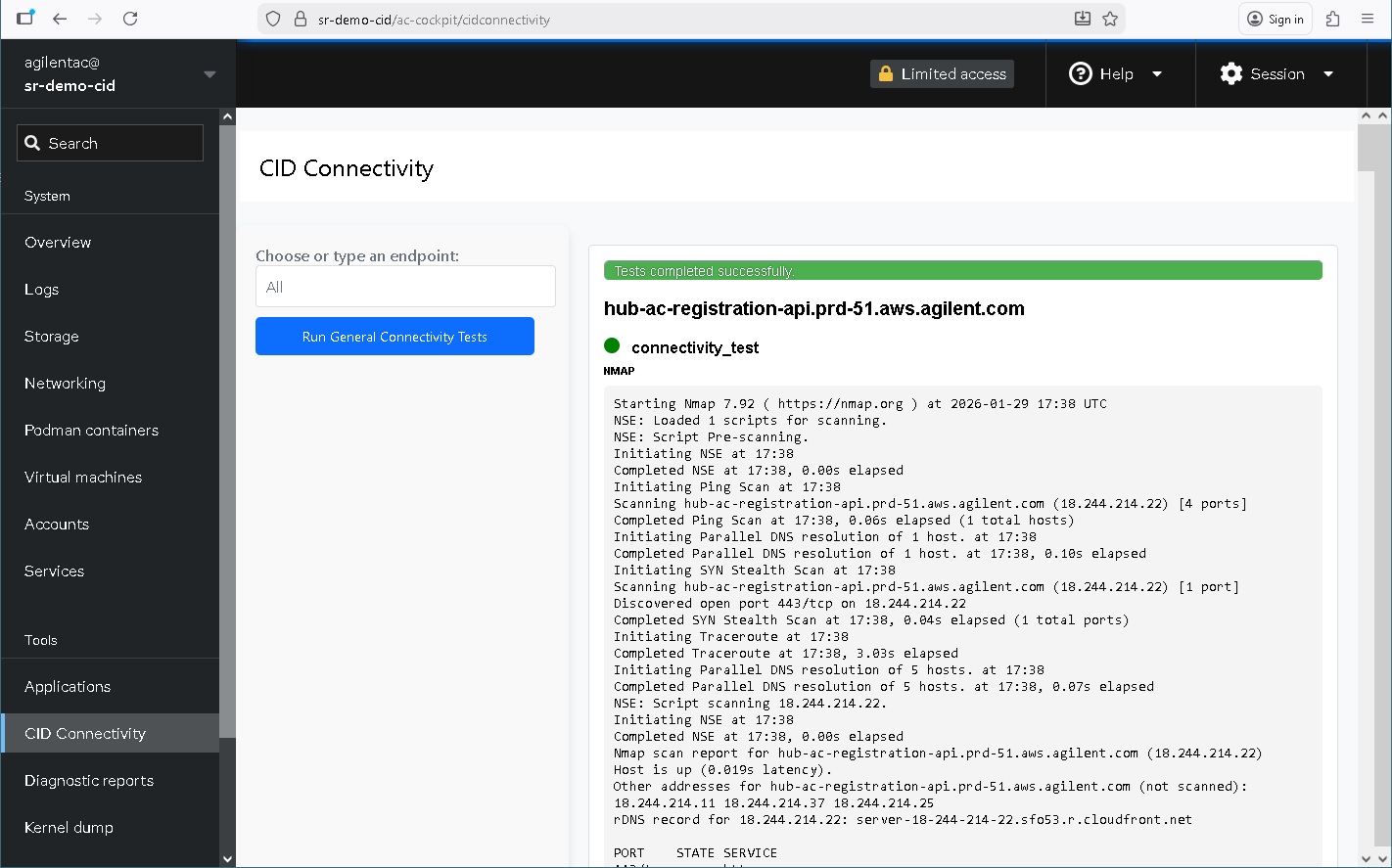
The Connectivity Tester is a diagnostic application within the Linux Cockpit interface of the CID. It tests the device's ability to reach the external services required for activation, monitoring, and software management. Crucially, it works on unactivated CIDs — making it the first tool to reach for when a new device is failing to connect.
Accessing the App
Access method and credentials depend on whether the CID has been activated.
Activated CIDs
- In the CID Hub, navigate to the Administration tab for the device
- Click Launch Cockpit
- Log in with:
- Username:
agilentac - Password: The complex, 10-character password shown in the Administration tab
- Note: This password is automatically recycled every 24 hours
- Username:
Unactivated CIDs
- Find the CID's IP address on your network
- Open a browser and navigate to
https://<CID-IP>/ac-cockpit/ - Log in with:
- Username:
agilentac - Password: The factory default password provided by Agilent support or services personnel
- Username:
No Network Access — Direct Console
If the CID cannot be reached over the network (for example, because of a misconfigured IP address or a complete connectivity failure), you can attach a monitor and keyboard directly to the CID and log in via the console. From there, you can run the manual diagnostic commands described in the CID-NET troubleshooting guides directly in the terminal.
Running a Connectivity Test
The CID Connectivity page is listed in the Cockpit left-hand navigation. Once open, you have two options:
Test All Endpoints
Click Run General Connectivity Tests to test all endpoints required by the CID in one go. This is the recommended starting point. For the full list of domains tested, see System Requirements → Internet Requirements.
Test a Specific Endpoint
Use the Choose or type an endpoint field to select a predefined endpoint or enter a custom URL (e.g., www.agilent.com), then run the test. This is useful for isolating a specific service or testing general internet reachability.
Reading the Results
Each test runs the following command against the endpoint:
nmap -v --script=resolveall --traceroute -p 443 <URL>
Results are displayed inline below the controls. Key things to look for:
- DNS resolution — the output will show whether the hostname resolved to an IP address. If resolution fails, refer to CID-NET-05: DNS Resolution Failure
- Port 443 state — look for
open(reachable),filtered(silently blocked by a firewall), orclosed(actively refused) - Traceroute hops — shows the network path to the destination. If the path terminates at an internal IP address, traffic is not reaching the internet
Troubleshooting Connectivity Issues
Use the failure type to identify the right next step:
| Failure Symptom | Go To |
|---|---|
| Port 443 connection times out or is refused | CID-NET-01: TCP Port 443 Blocked |
| TCP connects but TLS handshake fails | CID-NET-02: TLS Handshake Failure |
| Certificate error — corporate CA shown instead of expected issuer | CID-NET-03: SSL Inspection / Certificate Substitution |
| NTP-related errors or time sync warnings | CID-NET-04: NTP Time Synchronization Failure |
| Hostname cannot be resolved | CID-NET-05: DNS Resolution Failure |
| OpenLab server unreachable or not validating | CID-NET-06: OpenLab Server Unreachable |
Cockpit Terminal
Cockpit includes a built-in Terminal tab that provides direct shell access to the CID. This can be used to run manual diagnostic commands — such as the mtr commands in the CID-NET guides — without requiring a separate SSH connection. The terminal is available to any user logged in to Cockpit.