View the list of CIDs
The CIDs list page is the default "Home" page of the CID Hub after you log in. You can also access it by clicking the "CIDs" tab in the top navigation bar.
By default, the list is sorted by CID name in descending order. Click a column header to change the sort to ascending, descending, or unsorted.
You can filter one or more columns by clicking the chevron to the right of a column header to open a filter pop-up.
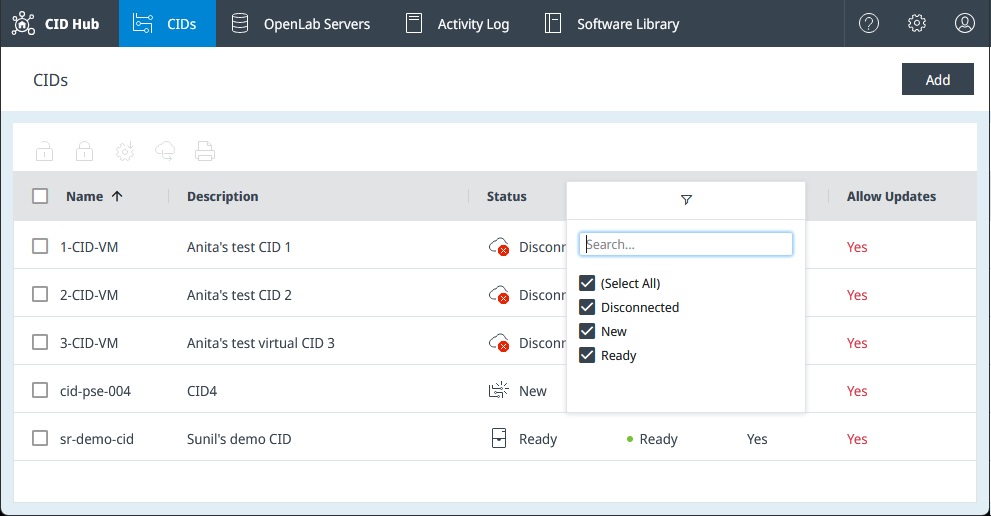
Column Descriptions
-
Name: The CID name displayed in the CID Hub, which is also the hostname for the physical CID. CDS clients must resolve the CID's IP address using this name.
-
Description: A user-provided description of the CID.
-
Status: The current state of the CID:
New: The CID record exists but the physical CID has not yet activated with it. Updates cannot be applied in this state.Disconnected: The CID is not connected to the CID Hub. Updates cannot be applied while it is disconnected.CDS not running: The CID is online but the OpenLab CDS VM is not running. Updates cannot be applied while CDS is stopped.Server disconnected: The CID is online and the OpenLab CDS VM is running, but the CID cannot connect to the OpenLab Server. Applying updates in this state is not recommended.Ready: The CID is online and the OpenLab CDS VM is running, but the CDS acquisition software is not active. This is the recommended state for applying updates.In Use: CDS is currently active on the CID. Applying updates while the CID is in use is discouraged but not blocked.
-
Updates: Shows whether updates are required and their current state:
- (blank): No pending updates.
Downloading: The CID is downloading one or more updates.Ready: All pending updates have been downloaded and are ready to install.Updating: Updates are currently being applied to the CID.
-
Inherit: Indicates whether the CID inherits its software settings from the server template or has individual CID-level exceptions.
-
Allow Updates: Shows whether the CID is locked against changes. When updates are disallowed, no changes can be applied. After making required changes, you can lock a CID to prevent accidental modifications. Changes can be applied only after an administrator unlocks the CID.
-
Server Name (FQDN): The fully qualified domain name of the server the CID is connected to. In multi-server environments, you can filter CIDs by server to manage a specific set.
-
Date Created: The date and time when the CID record was originally added to the CID Hub.
-
Last Software Update: The date and time when any software update was last applied to the CID.
Bulk Actions
-
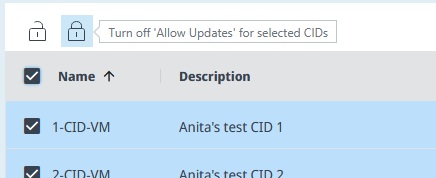
Toggle "Allow Updates": Use the "Turn on 'Allow Updates'" (unlock icon) and "Turn off 'Allow Updates'" (lock icon) buttons above the table to allow or disallow updates for one or more CIDs at once.
-
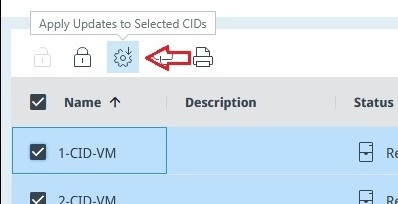
Apply Updates: Use the "Apply Updates" (gear icon) button to initiate updates on one or more selected CIDs.
-
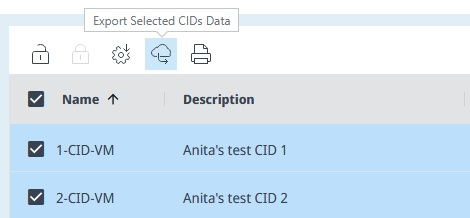
Export CID Data: Use the "Export CID Data" (cloud download icon) button to download information about the selected CIDs in JSON format.
-
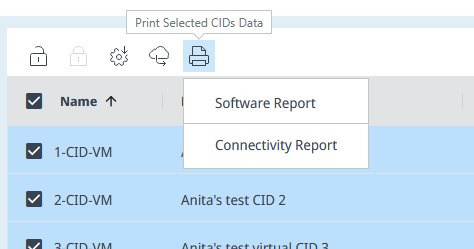
Print Reports: Use the "Print Report" (printer icon) button to print information about the selected CIDs.
- Software Report: A summary of the CID including its IP address and installed software versions.
- Connectivity Report: Shows whether the CID is connected to its instrument and the CID Hub IoT services.