Register an OpenLab Server
Overview
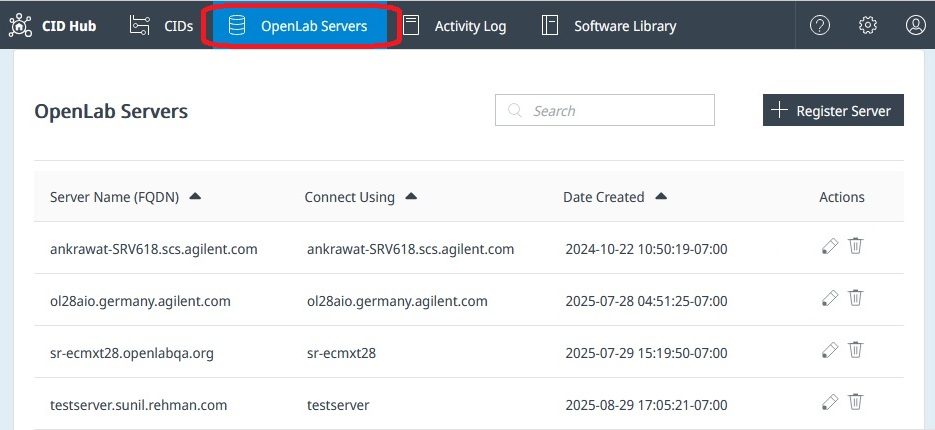
You must store information about your OpenLab Server(s) in the CID Hub. When CID devices start up, they use this stored information to automatically register with the OpenLab Server.
You can add server details to the CID Hub as soon as the information is available. The OpenLab Server does not need to be running or reachable at the time of registration.
The CID Hub does not verify or connect to the server. It simply stores this information so that CID devices can retrieve and use it later.
How to Register an OpenLab Server
Click Register Server to add a new OpenLab Server.
Field Descriptions
-
Server Name (FQDN)
Enter the fully qualified domain name of the OpenLab Server (e.g.,
olserver.prod.example.com). For best compatibility with DNS systems, use lowercase letters when entering the FQDN. -
Connect to
Specify how CIDs should connect to the server: by hostname or by FQDN.
CautionYou must use the same naming convention (hostname or FQDN) consistently across all CDS Clients, AICs, and CIDs to avoid functional issues.
-
Username / Password
Credentials used by CIDs during initial registration with the OpenLab Shared Services (OLSS). Keep this information up to date and accessible because:
- Certain drivers use these credentials during installation or upgrade to register with OLSS.
- They are also required for administrative functions such as Register CID and Reset OpenLab CDS.
-
CID Network Share (Optional but recommended)
A shared network path that allows CIDs to cache downloaded CDS versions, improving performance and reducing internet bandwidth usage.
- When a CID downloads a CDS version (~25 GB) from the CID Hub, it caches a copy in a
downloadssubfolder on this share. - Other CIDs can then retrieve the cached files from the network share instead of downloading them again from the internet.
- You can also manually download CDS files from the CID Hub's Software Library and place them in this share path.
- When a CID downloads a CDS version (~25 GB) from the CID Hub, it caches a copy in a
-
Network Share Username / Password
Required if anonymous access is not allowed. Depending on your share setup, the username format can be:
user@domain.com, oruser
The legacy DOMAIN\username format may cause authentication failures on Linux-based devices.
How to Edit an Existing Server
To edit a registered OpenLab Server, click the 'pencil' icon in the 'Actions' column.
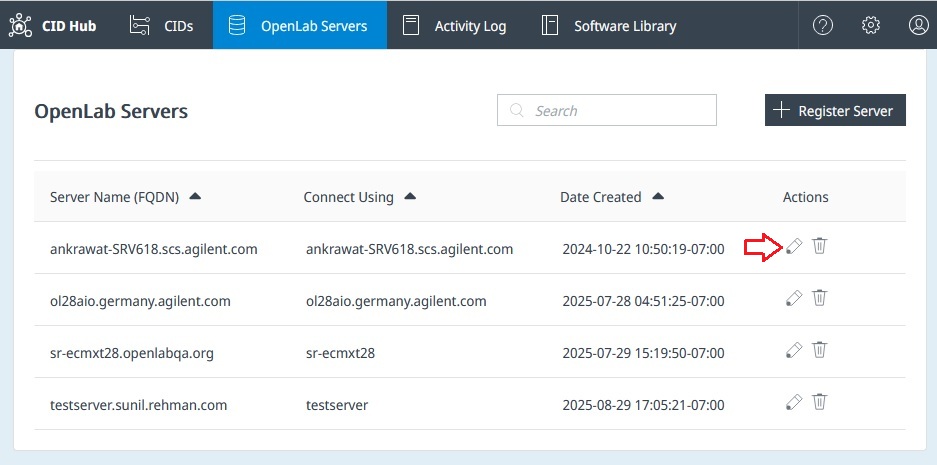
If the server FQDN is updated, all CIDs connected to that server need to be re-registered. This can be done by clicking the Register CID button on the CID Administration page.
Updates to other information take effect when the CIDs are restarted. CIDs can be restarted by clicking the Reboot System button on the CID Administration page.
How to Delete an Existing Server
Server registries can be removed by clicking on the 'trashcan' icon in the 'Actions' column.
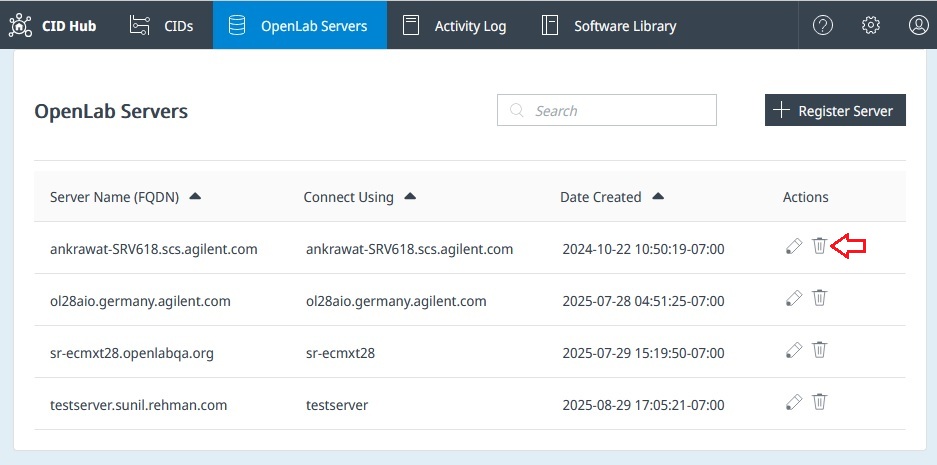
Only unused server registries can be removed from the CID Hub. A server cannot be removed if one or more CIDs are associated with it.