Manage Account Settings
Overview
The Account Settings page allows administrators to view and manage their organization's account details within the CID Hub, such as the company name, address, and contact information.
Accessing Account Settings
To manage your account settings:
- Click the Settings (gear) icon in the top-right corner of the navigation bar.
- From the dropdown menu, select Account.
This will take you to the Account Summary page.
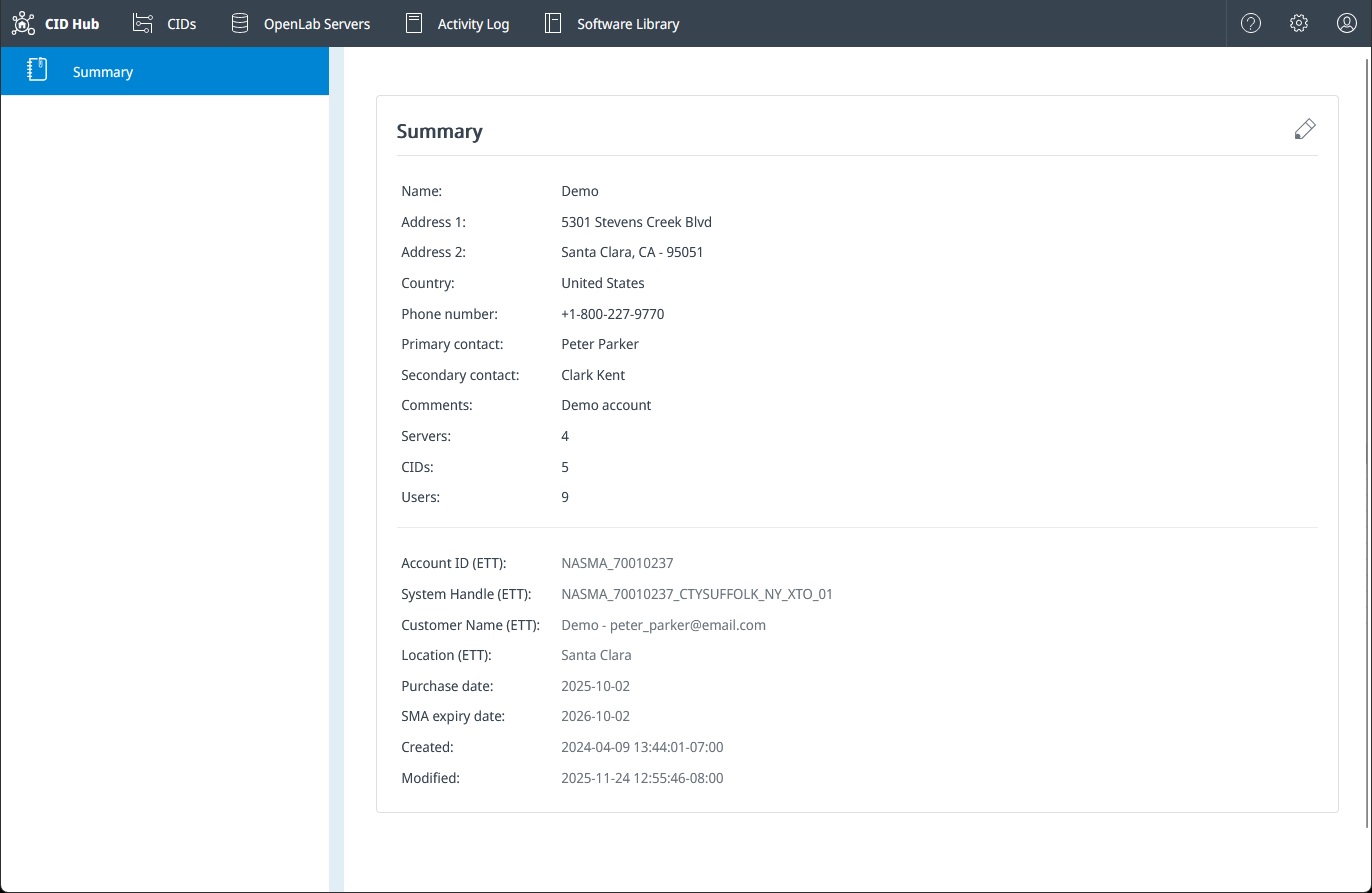
Account Summary
The Account Summary page displays your organization's key information, including:
- Company Name and Address
- Primary and Secondary Contacts
- The number of Servers, CIDs, and Users associated with the account.
Editing Account Details
-
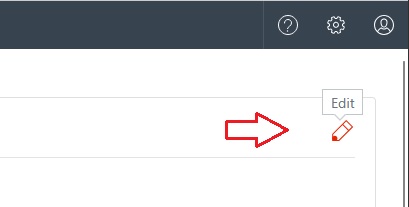
To update your account information, click the Edit (pencil) icon on the Summary page.
-
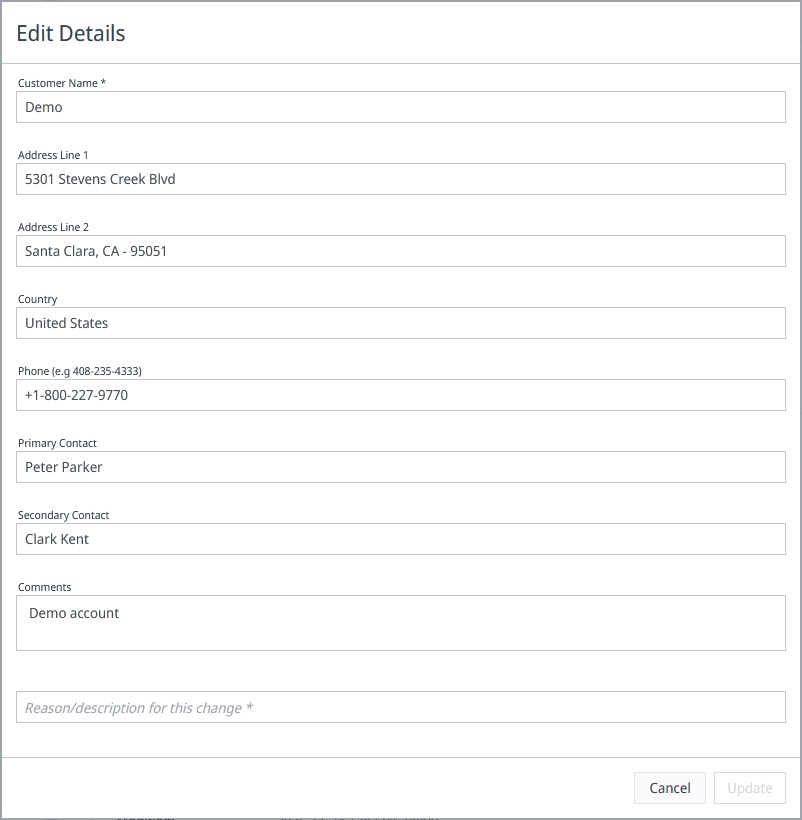
The Edit Details dialog will open. You can update your organization's address, phone number, and contacts here.
-
You must provide a justification for the changes in the Reason/description for this change field.
-
Click Update to save your changes, or Cancel to discard them.
:::info ETT Fields Fields labeled with (ETT) and Purchase/SMA dates are for Agilent's internal use and cannot be edited by customers. :::