CID Administration
This guide provides details on accessing the Connected Instrument Device (CID) for maintenance and explains the system recovery actions available in the Hub.
Accessing the Administration Page
To access the administration controls for a specific device:
- Navigate to the CIDs list in the main header.
- Select the specific CID you wish to manage.
- Click the Administration tab in the left sidebar menu.
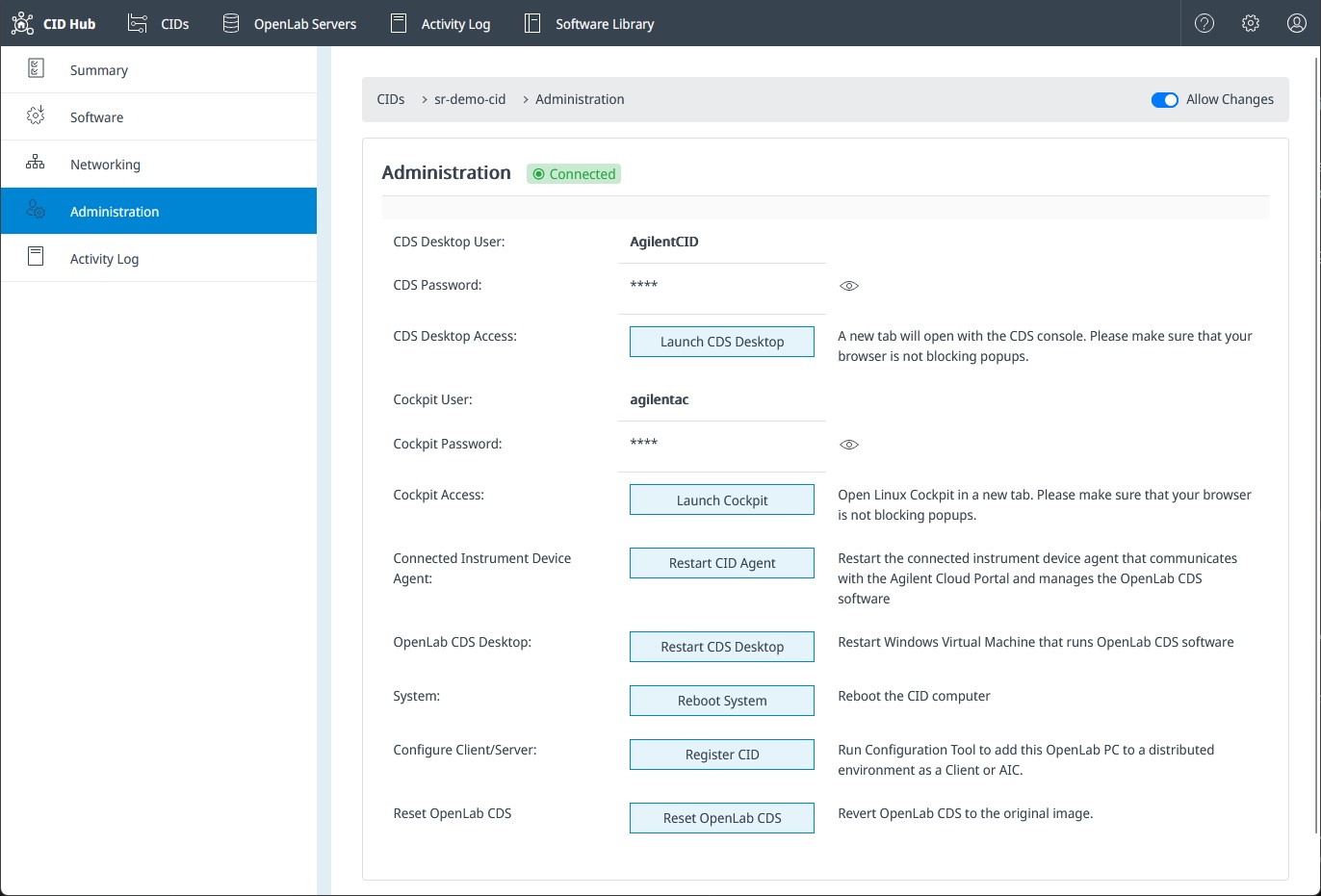
To perform any administrative actions or restarts described below, the Allow Changes toggle must be enabled on the interface.
Device Access Credentials
The CID uses a secure credential management system to ensure device security. These credentials allow access to the physical device components, not the CID Hub website.
- Rotation: Passwords are automatically recycled every 24 hours.
- Reset: Performing a Factory Reset will also reset these passwords.
CDS Desktop User
- Purpose: Allows access to the console of the Windows Virtual Machine.
- Usage: Use this credential when you launch the CDS Desktop to interact directly with the instrument software running inside the VM.
Cockpit User
- Purpose: Allows access to the Linux Cockpit tool on the host system.
:::warning Restricted Access The Cockpit interface requires deep knowledge of the Linux environment. Do not use this account unless explicitly directed by CID Hub Support. Incorrect configuration in Cockpit can render the device unusable. :::
System Actions & Recovery
The CID architecture consists of a Linux Host system running a Windows Virtual Machine (VM) that contains the OpenLab CDS instrument software. Use the table below to determine the appropriate action for your maintenance needs.
Level 1: Service & System Restarts
Use these for standard maintenance or to clear stuck states.
| Action | Target | When to use |
|---|---|---|
| Restart CID Agent | CID Software Agent | - To synchronize OLSS page changes from the CID Hub. - When the CID is not receiving commands from the CID Hub despite being connected. - When the agent is unhealthy or behaving erratically. (Note: A device must be online to receive the command, so this action cannot fix cloud connectivity issues.) |
| Restart CDS Desktop | Windows VM | - When CDS functionality issues require a desktop restart. - The OpenLab software is frozen, but the Linux system is responsive. |
| Reboot System | Linux Host | - When IP or DNS changes have not propagated to the CID. - The entire device is sluggish, unresponsive, or requires a clean boot. |
Level 2: Reset OpenLab CDS (VM Re-image)
Use this to reset the Windows Virtual Machine.
Clicking Reset OpenLab CDS on the Administration tab will:
- Drop the existing Windows Virtual Machine.
- Recreate the VM from the original image.
This action wipes the virtual machine state. Any local configurations inside the Windows environment such as IP configuration, any driver/add-on changes, etc. will also be lost and need to reapplied.
Level 3: Factory Reset (Linux Environment Reset)
Use this to rename a CID, reset it to default settings, or decommission it.
A Factory Reset resets the configuration in the underlying Linux operating system and triggers a fresh re-configuration of the device.
Prerequisites:
- Close Connections: Ensure all instrument connections are closed.
- Verify Data: Although the CID does not store data locally, ensure all acquired data is visible in the backend storage before proceeding to avoid losing data currently in transit.
Steps to perform a Factory Reset:
- Navigate to the Summary tab.
- Click the Delete CID button.
- Physically restart the CID hardware (toggle the power button on the unit).
Upon reboot, the CID will detect it has been removed from the Hub and will automatically initiate the factory reset sequence.