Apply Software Updates
Overview
Software updates for CIDs are a two-step process: Download and Installation.
- Download: When updates are assigned to a CID, they download automatically in the background.
- Installation: Updates are not installed automatically. A CID administrator must manually apply them from the CID Hub.
This manual control allows you to schedule installations at convenient times (for example, outside of production hours) to avoid interrupting any ongoing work.
Installation Methods
The CID Hub provides three ways to apply pending updates:
- Method 1: Apply Updates to Multiple CIDs (Bulk Action): Apply all pending updates to multiple CIDs at once.
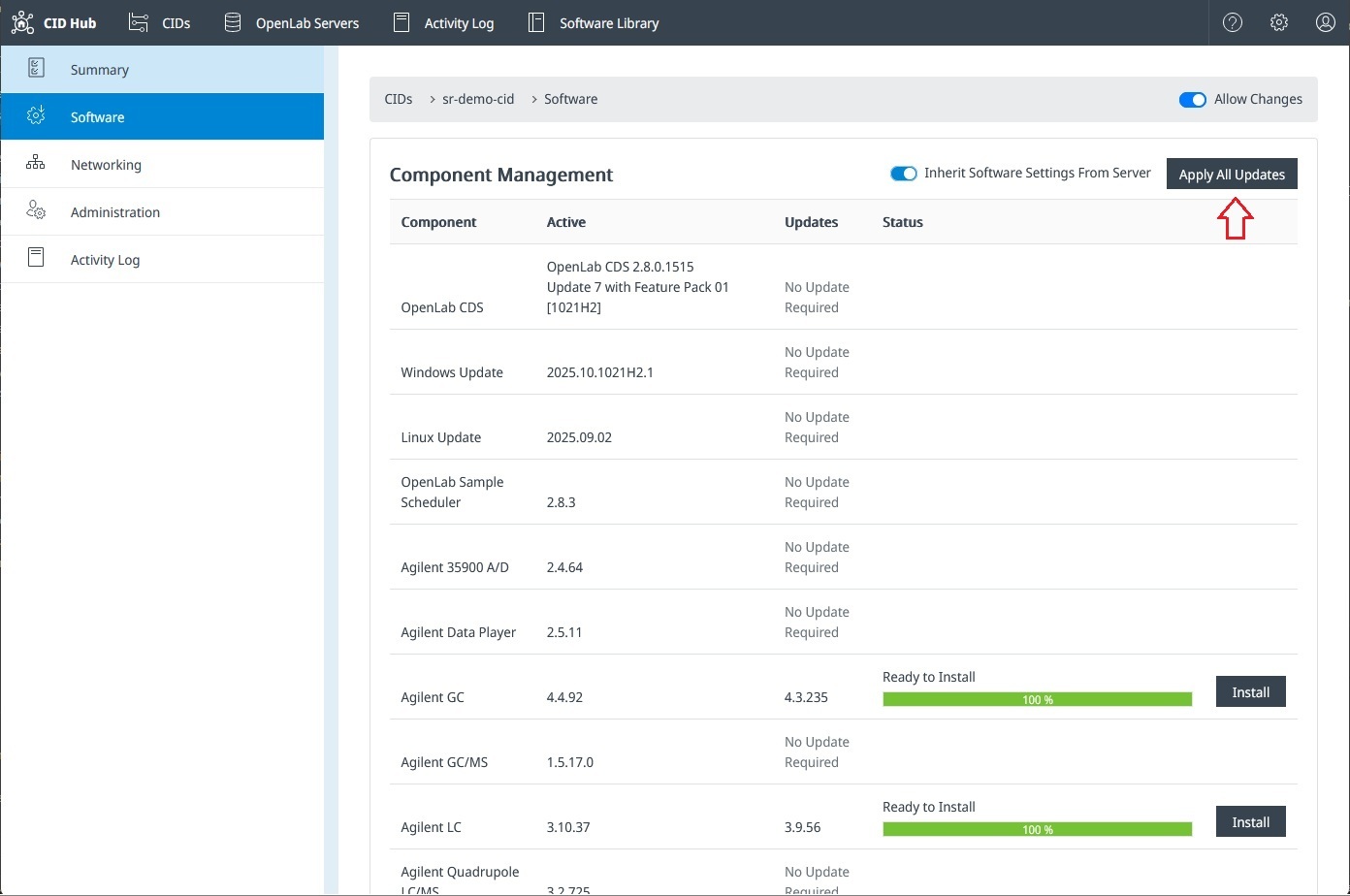
- Method 2: Apply All Updates on a Single CID: Apply all pending updates to one specific CID.
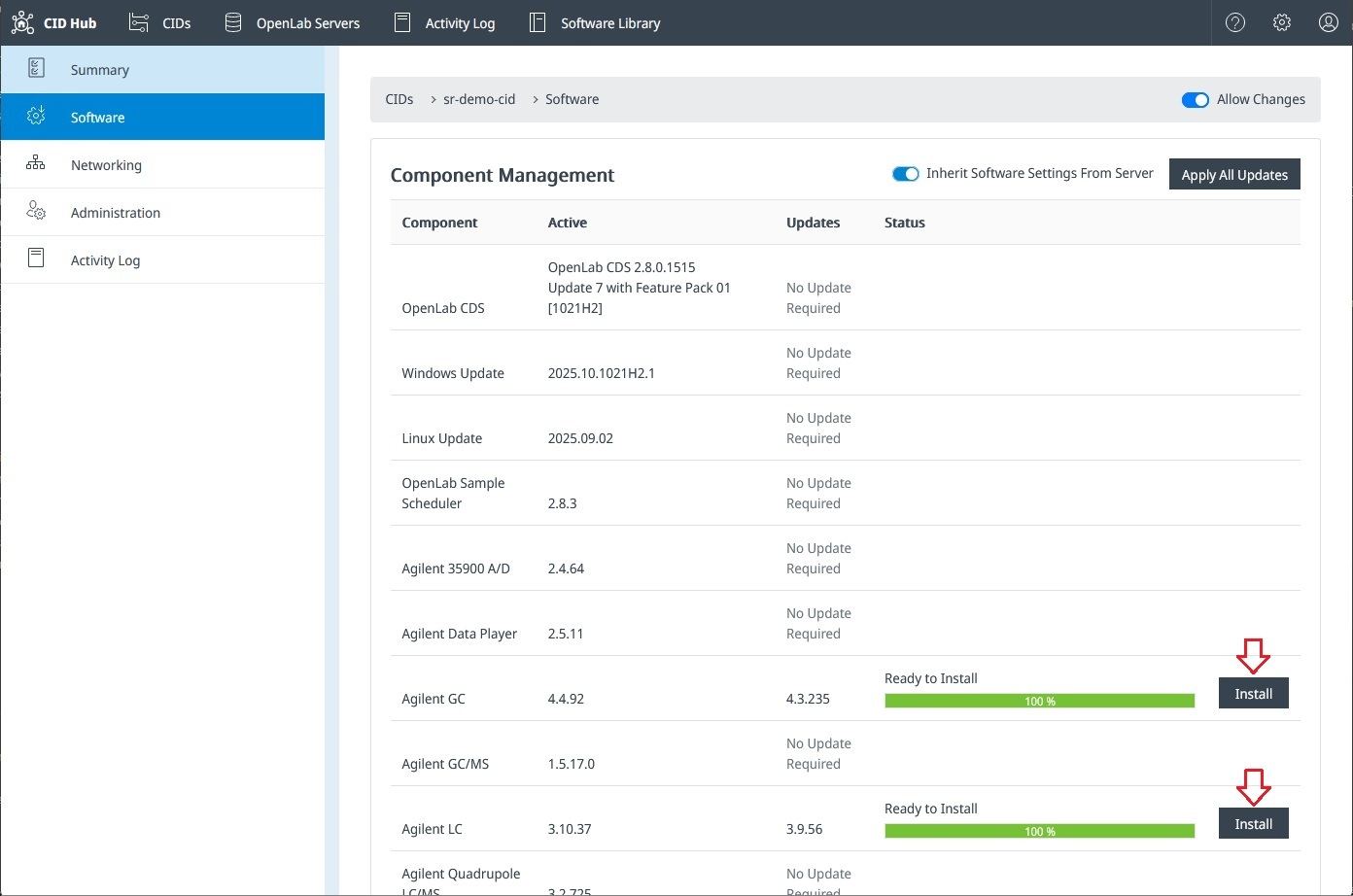
- Method 3: Apply Individual Updates on a Single CID: Apply a single, specific update on one CID.
Method 1: Apply Updates to Multiple CIDs (Bulk Action)
Use this method to efficiently update several CIDs at once from the main list.
- Navigate to the CID List page.
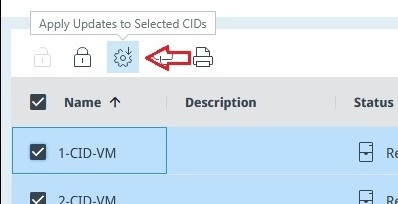
- Select the checkboxes for CIDs that have Status = Ready and Updates = Ready.
- Click the Apply Updates (gear icon) button in the toolbar.
:::info Important
Pay attention to the values for Status and Updates columns. Agilent recommends to only apply updates for CIDs for which both columns show Ready.
:::
Method 2: Apply All Pending Updates on a Single CID
Use this method to apply all available updates for one specific CID.
- On the CID List page, click the CID name to open its details page.
- Navigate to the Software tab.
- Click Apply All Updates to install all pending updates for that CID.
Method 3: Apply a Specific Update on a Single CID
Use this method to apply a single update, for example during troubleshooting or when you want to stagger larger updates.
- Navigate to the CID’s Software tab (same as Method 2).
- Locate the update you want to install in the list. The progress bar shows its current status (for example, Downloading or Ready to Install).
- Click Install for that specific update.